Troubleshoot a deliverability alert
What each alert on the deliverability page means and what to do about it, from a low open rate to spam complaints.
About 3 minutes to read
When an alert appears
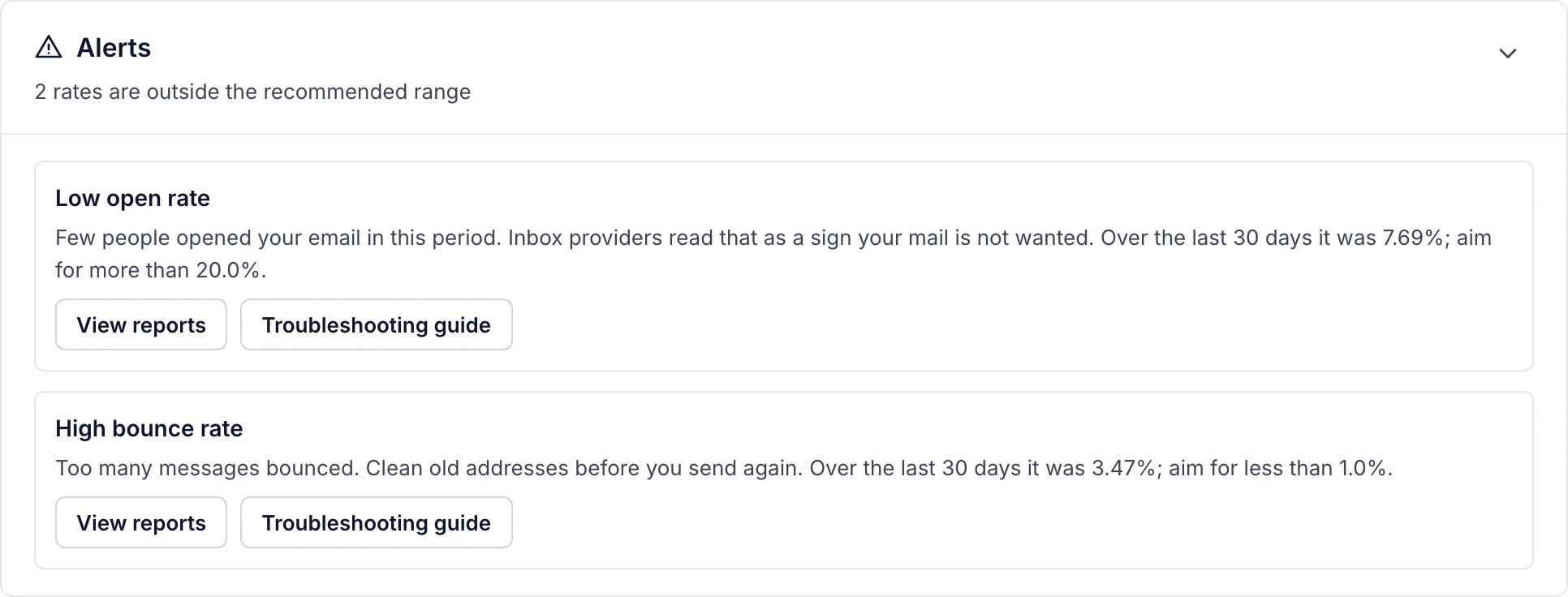
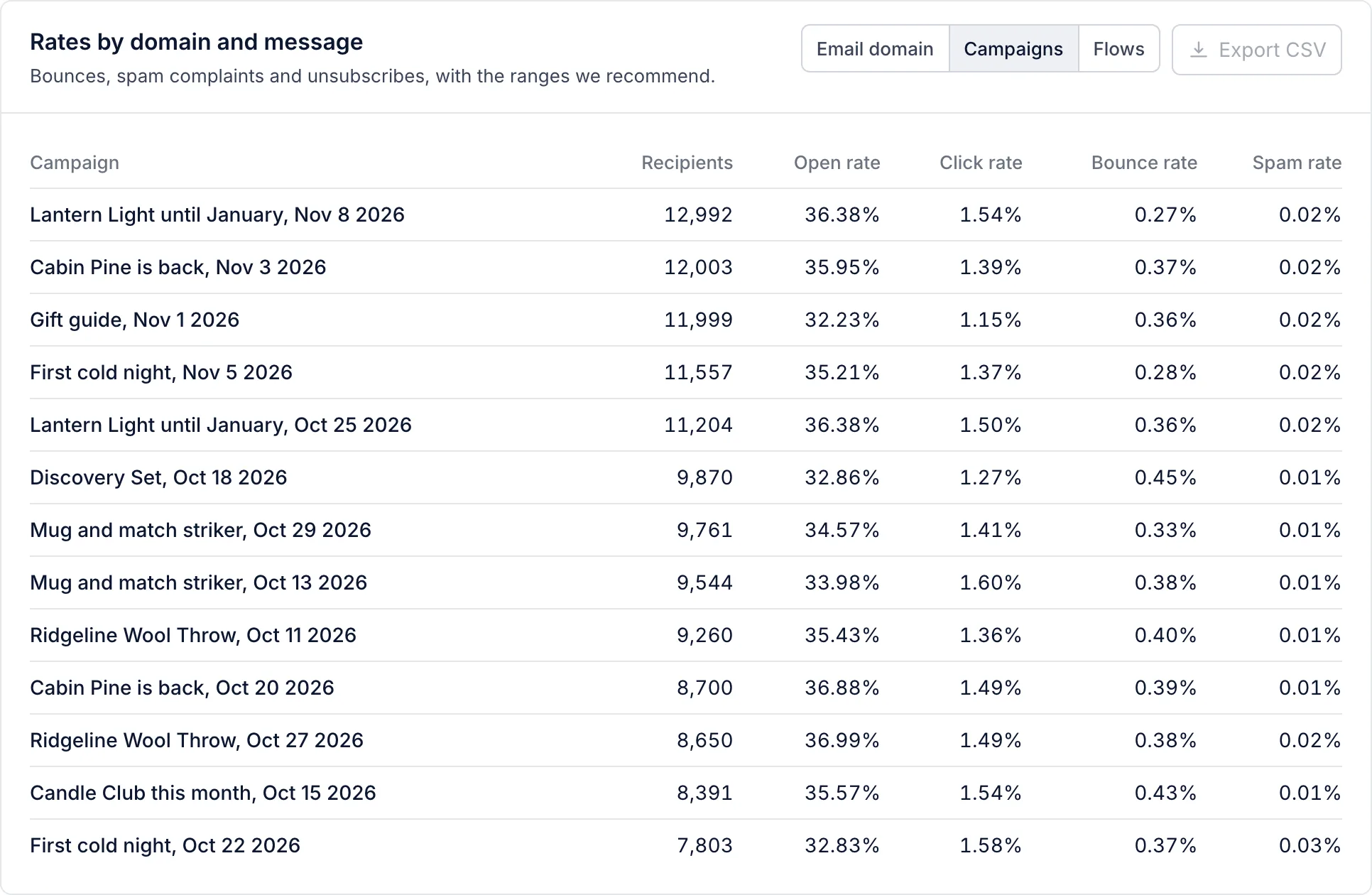
An alert appears at the top of Analytics then Deliverability when one of the five rates is rated Poor for the period you are looking at. It names the rate and what we recommend. Start with the alert at the top, then look for its cause in Reports, which shows rates by recipient domain, by campaign and by flow.
High spam complaint rate
More than 0.3% of delivered email was reported as spam (we recommend under 0.1%). This is the most urgent alert.
- Find the message: in Reports, look down the campaign and flow rows for the highest spam rate.
- Check who it went to. Complaints usually come from people who no longer remember signing up. Send to recently engaged people and leave out the rest.
- Check how people joined. Only people who agreed to hear from you should be subscribed, including anyone you imported.
- Make the unsubscribe link easy to find. Someone who cannot find it marks the email as spam instead.
Everyone who complains is suppressed and unsubscribed for you.
High bounce rate
More than 2% of email bounced (we recommend under 1%). Bounces mean old or mistyped addresses.
- Look at the campaigns with the most bounces in Reports. A spike after an import usually means the imported list was old.
- Hard bounces are suppressed for you, so they cannot bounce twice. Soft bounces, such as a full mailbox, are not suppressed, so later sends still go to those addresses.
- If one sign-up form brings in many mistyped addresses, turn on double opt-in in its list’s settings, so people join only after they confirm by email.
Low open rate
Under 10% of delivered email was opened (we recommend over 20%). Inbox providers read low opens as a sign the mail is not wanted, and send more of it to spam.
- Narrow the audience to people who opened or clicked in the last 90 days, and use a never engaged segment in Don’t send to.
- Check that your sending domain is verified and its records have not changed.
- In Reports, look at rates by domain. A low rate at one provider only, such as Microsoft, points to a placement problem there rather than with your content.
- Test two subject lines with an A/B test before changing anything else.
Low click rate
- Under 0.5% of delivered email was clicked (we recommend over 1%). Check that each email has one clear thing to do, with a button near the top.
- Check that the offer fits the audience: a segment of recent buyers wants something different from people who have never ordered.
- Send a test and click every link before the next campaign goes out.
High unsubscribe rate
- More than 0.8% of people who got the email unsubscribed (we recommend under 0.3%). Usually that means too many emails, or emails that do not match what people signed up for.
- Keep smart sending on in your campaigns, and check its period under Settings then Email, so one person does not get several messages close together.
- Look at which campaigns and flows lose the most people in Reports, and check what they have in common.
Still stuck
Email hello@growthdept.ai with your account name and the alert. Your Growth Dept team can look at the sends with you.
Related articles
- Your deliverability score
What the score out of 100 is made of, the ranges we recommend, and the quickest ways to raise it.
- Clean your list
Which addresses we suppress for you, and how to find, leave out and remove people who have stopped reading.
- Campaign deliverability: open rates, reputation and email apps
What to check when open rates fall, how sender reputation works, and why the report has no email app breakdown yet.
Something wrong or missing? Email hello@growthdept.ai.